
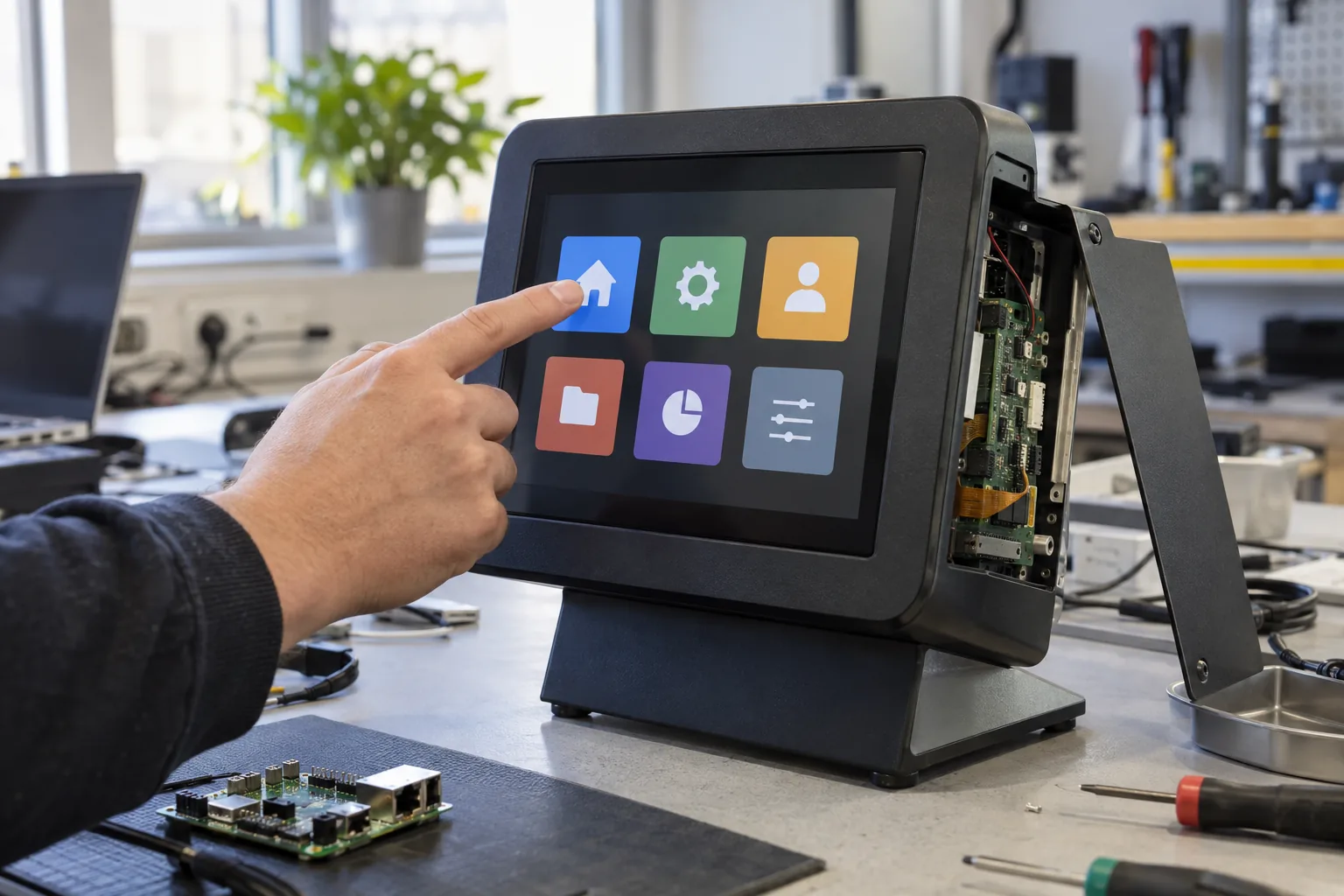
The first custom-launcher demo is usually convincing: a company logo, a few large buttons, and an application that fills the display. The harder review starts when the app crashes, a USB permission dialog appears, or an installer presses Home after connecting a keyboard.
Android launcher customization for an embedded SBC should define the entire Home experience, including startup, allowed applications, unavailable peripherals, maintenance, and updates. Visual branding is one deliverable. Predictable behavior across these transitions is what makes the device usable in a kiosk, operator terminal, or wall control product.
Start the Android SBC integration review with the image version and deployment model. A plan based on managed Android APIs must be checked against the actual vendor BSP and provisioning workflow.
Decide whether the product needs a launcher
A single-purpose terminal may work well with one application registered as Home. A multi-application device may need a separate launcher that presents approved workflows and returns users to a stable menu. Avoid introducing a second application simply to display a logo before opening the first one.
Define the actions visible to ordinary users, installers, and service staff. For a commercial terminal, those might be transaction entry, network setup, diagnostics, and maintenance authorization. Each role should have a small, explicit set of destinations.
Capture what happens after Back, Home, an external keyboard shortcut, screen wake, app exit, and process restart. These transitions reveal scope more clearly than a static UI mock-up.
Distinguish Home selection from device restrictions
A Home app handles Android’s Home intent. Device policy can make the approved handler persistent in an authorized managed-device arrangement. The Android dedicated-device guidance explains custom Home handling and related integration patterns.
The application still needs the correct manifest and supported provisioning. An ordinary APK cannot simply grant itself device-owner privileges. Confirm how the factory or deployment process establishes management ownership before promising a locked-down product.
Lock task mode, when properly configured and supported, restricts the application experience beyond replacing Home. Hiding navigation visually or using screen pinning is not equivalent. Ask for a demonstration on the production image, including the configured escape and service paths.
Map requirements to the right owner
Some changes belong in the launcher, others in device policy, and others in the BSP. Keeping that split visible helps avoid unnecessary system modifications and makes updates easier to reason about.
| Requirement | Likely owner | Acceptance evidence |
|---|---|---|
| Branded Home screen | Launcher application | Correct layout and approved destinations |
| Persistent Home selection | Management policy or OEM integration | No chooser after reboot and update |
| Restricted app access | Device policy and system integration | Attempts to open unapproved workflows |
| Display orientation and touch | BSP plus application | Matching coordinates after every transition |
| Peripheral access | Driver, permissions, and app | Reconnect without unexpected prompts |
| Maintenance entry | Product security and service workflow | Authorized access and return to operation |
For smart terminal hardware, attach the scanner, printer, camera, or NFC device during this review. Otherwise, a clean launcher demonstration may conceal permission and recovery behavior that only appears with peripherals.
Define startup readiness in layers
The launcher can be visible before the network, database, or peripheral service is ready. Decide which actions remain available during that interval. A greyed-out control with a clear local status is preferable to accepting an operation that cannot complete.
Do not make the Home screen wait indefinitely for a cloud response. The device should expose the intended offline and service state when connectivity is unavailable. Keep diagnostics accessible through the authorized path even when the main business workflow cannot start.
Measure power-on to first frame, Home readiness, and successful task separately. The Android boot measurement should use the real image and app data, including the slower first start after an update or reset.
Handle crashes without concealing them
Agree whether the launcher relaunches a failed application, displays a service message, or returns to an approved menu. Bound retries and retain the reason for failure. Reopening a crashing app continuously can consume resources while leaving support with little evidence.
Distinguish a stopped process from a stuck workflow. An app may remain alive while a database operation, printer request, or network call never completes. The application should report useful state; a separate supervisor needs a product-specific definition of health.
Avoid using repeated full-device reboot as the first response to every application error. Recovery should match the failure, with escalation when a local restart cannot restore service. Test that the selected mechanism itself does not violate the device’s management restrictions.
Make service access workable in the field
Installers need a controlled way to set networking, bind a room or device ID, and check hardware. Support may need logs, version details, and a recovery action. Plan those paths before removing general settings access.
A hidden tap sequence can help discover a maintenance screen but is not authentication by itself. Decide who authorizes service work and how credentials or time-limited access are managed. Record significant maintenance actions without exposing secrets in ordinary logs.
If the interface relies on a touchscreen, consider the case where touch is unavailable. Define whether remote management, a service connector, or a recovery procedure can restore the product without depending on the broken interaction path.
Test the parts that sit outside the launcher window
System permission dialogs, input methods, pairing screens, file pickers, and external activities can appear above the branded UI. Exercise every workflow that might open them. A single unrestricted settings intent can undermine an otherwise controlled experience.
Check font scaling, language changes, orientation, and screen resolution on the target panel. Long localized labels and on-screen keyboards can cover the main controls. Keep a stable layout for loading, disconnected, and error states rather than allowing content to push buttons off screen.
The Android BSP acceptance scope should name these cases and the team responsible for fixes. A launcher developer cannot correct every framework or driver issue from application code.
Release application updates with their policy state
Keep package names, signing relationships, version dependencies, permissions, and configuration compatibility under control. Replacing the APK while leaving an incompatible policy or data file can produce a device that boots to an empty Home screen.
Test updates from the versions actually deployed, including interrupted installation where applicable and first launch with existing data. Confirm Home remains assigned, approved apps still launch, and maintenance access still works. Define a recoverable fallback for a launcher that fails after installation.
For a custom Android board, include launcher, policy configuration, app versions, and provisioning instructions in the production software package. The factory should reproduce the approved state without manually selecting Home on every device.
Before release, run a complete shift-like workflow: cold start, repeated user actions, network loss, peripheral removal, application failure, screen wake, and an authorized service session. The acceptance result should describe what users and technicians can do at each stage. That is the difference between approving a screen design and approving a deployable Android product.
Frequently Asked Questions
Does replacing the Android launcher create kiosk mode?
No. A launcher controls the Home experience. Restricting access to other apps and system features requires an appropriate device-management policy, such as supported lock task mode, validated on the supplied image.
Must a custom launcher be a system app?
Not always. A managed device can use a regular Home app with authorized device-policy configuration. System integration may be needed for particular OEM functions, depending on the Android image and required privileges.
What should happen when the main terminal application crashes?
Define a bounded recovery path, retain diagnostic evidence, and show a usable status screen. Repeatedly relaunching without limits can hide the fault or trap the device in a loop.